Why I built Barista
Ten days ago I shipped Barista. This is a short write-up of what it is, what problem it solves for me, and a few decisions I made along the way.
Small tasks, many times a day
A lot of what I do on my Mac during a day is small: check when the next meeting starts, glance at the weather, convert a unit, paste something I copied an hour ago, see what just landed in my inbox, jot down a note. Each one takes a couple of seconds. But doing it usually means stepping away from what I'm working on: switching to another app, opening yet another window, or hiding everything to get to the widgets on the desktop. And then finding my way back to where I was.
The menu bar is the one place that's always there, above whatever I'm doing. Clicking something there, doing the task in two seconds and carrying on doesn't move a single window or break my train of thought. That's what I wanted for all of those small tasks: click, done, back to work.
One app for all of it
The idea behind Barista is to put those small tasks in the menu bar, in one app. Each widget is one item in the menu bar, and clicking it opens a small popover that behaves like a proper little app rather than a dropdown menu. They all share the same look, spacing and keyboard handling (arrow keys, Return, Esc to close), so once you've used one you know how the others work. Everything is configured from a single settings window.
It started with a handful of widgets and grew to more than 35: calendar, reminders, weather, email, clipboard history, CPU, memory and battery, a calculator, a unit converter, world clocks, a colour picker, and a few small games for when a build is taking its time. A fresh install starts with none of them switched on. You pick the ones you want, so the bar only holds the things you actually reach for.
Calendar
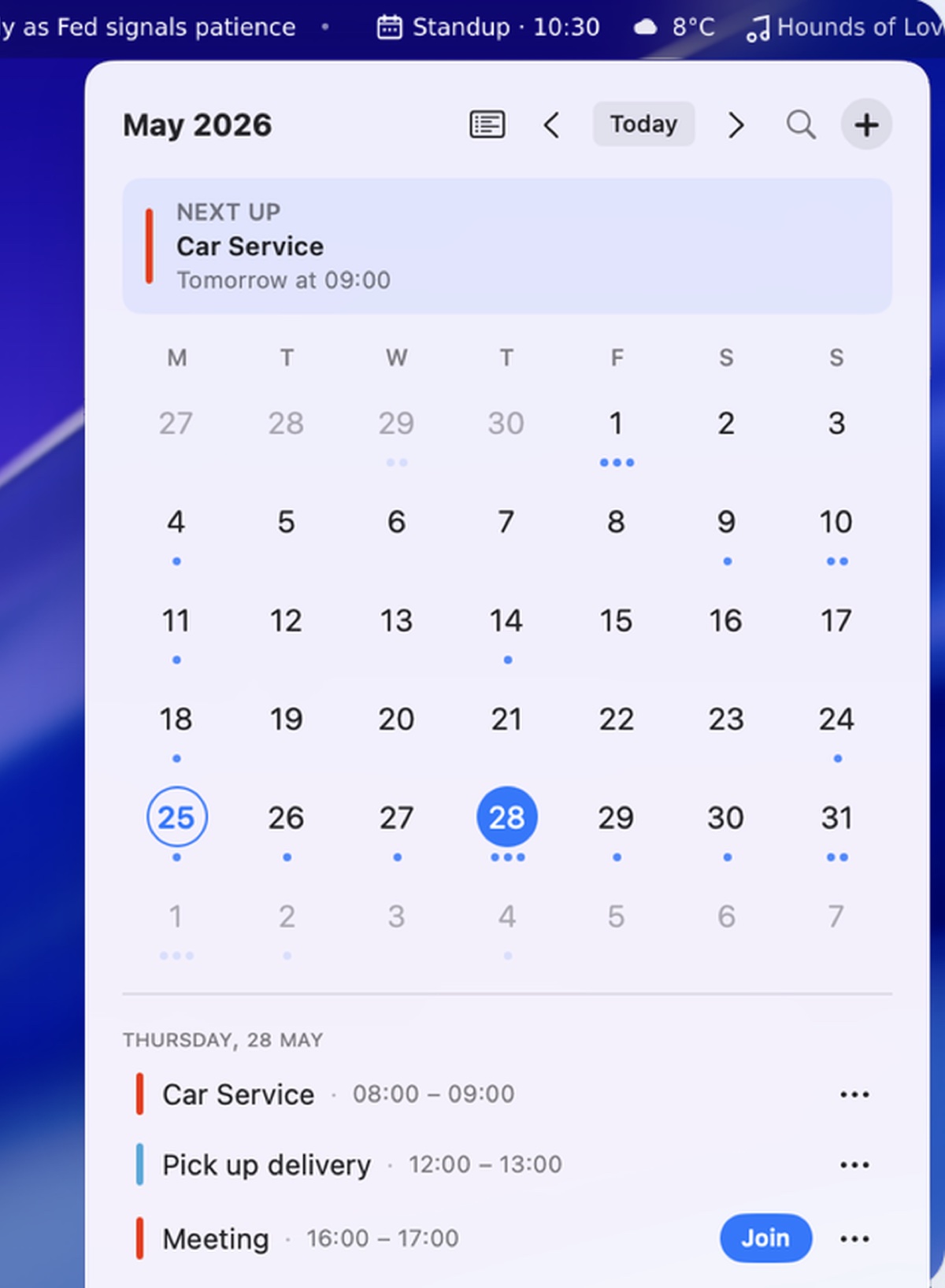
The calendar is the widget I use most. It's something I was used to from GNOME, where clicking the clock in the top bar opens a small calendar with your upcoming events. macOS doesn't have that (clicking the clock opens Notification Center instead), and I missed it.
The menu bar shows the next event and its time. Clicking it opens a month grid with dots for busy days, a "Next up" card, and the agenda for whichever day you select. Meetings with a video link get a Join button. It reads from the calendars already set up on your Mac, so there's nothing new to connect.
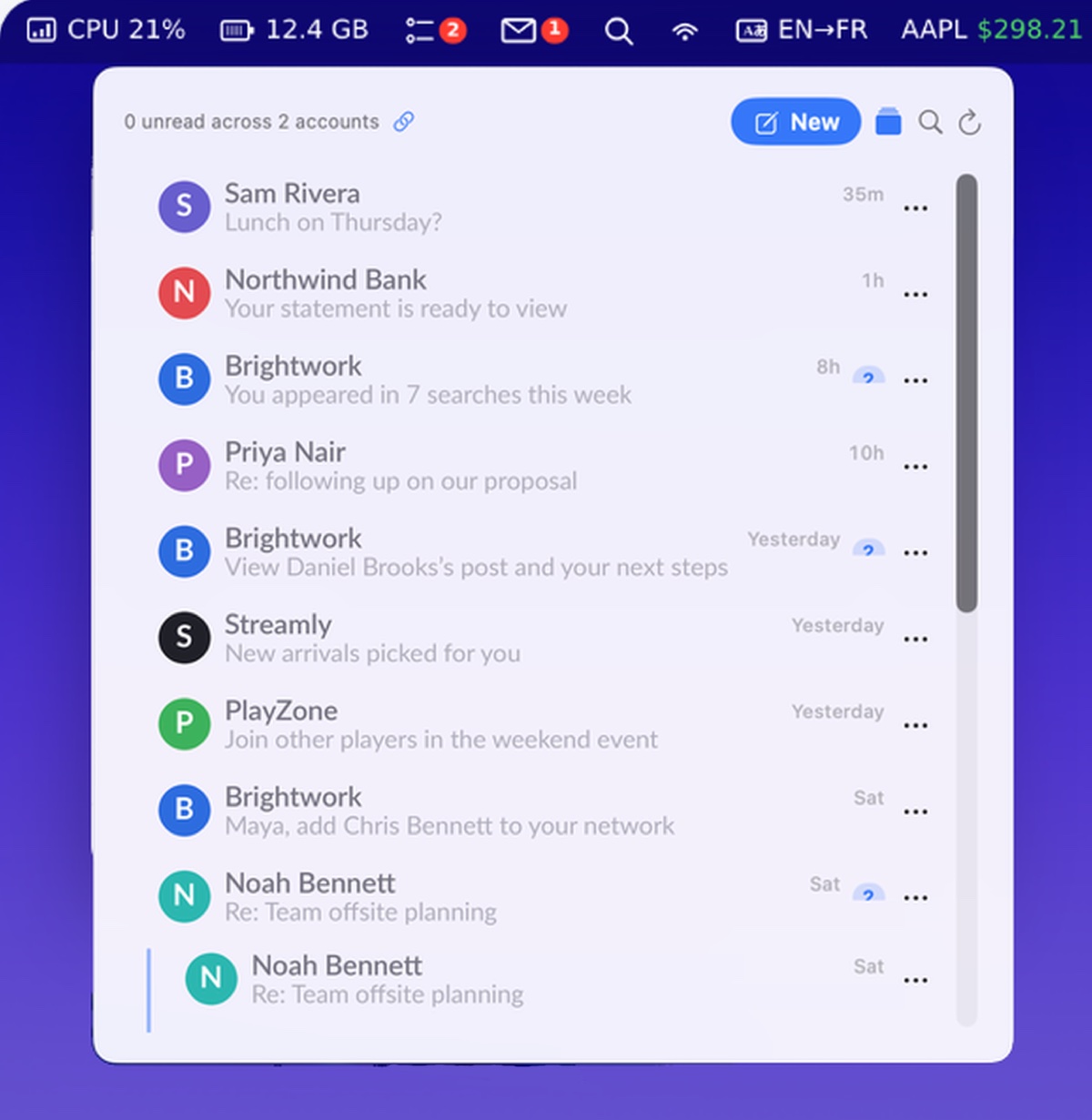
The email widget was the most work by far. The menu bar shows the unread count. The popover lists recent messages across all your accounts, and you can read, reply and write new mail without leaving it. It talks to mail servers directly, so it doesn't need Mail.app running. Gmail, iCloud, Yahoo and AOL are set up with a few clicks, and other servers work too if they accept a direct TLS connection (the setup runs a quick test and tells you if yours doesn't). It's not trying to replace a full mail client. It's for glancing at what came in and dealing with the quick ones.
Running out of room
With enough widgets turned on, the menu bar fills up quickly, especially next to the notch. So Barista can fold everything behind a single icon. Clicking it drops down a separate Barista bar that holds all the widgets, with its own space independent of the system menu bar. This is set per display, so a laptop screen can stay tidy while an external monitor shows everything.
A few decisions
- Mac App Store only. Barista runs in Apple's sandbox and uses only public APIs. That ruled out a few things I wanted, such as showing what's playing in any app, a widget for switching Spaces, and a small terminal, because each of them would need private APIs or permissions the sandbox doesn't allow. I'd rather drop a feature than ship something that could break with the next macOS update.
- Nothing leaves your Mac unless a widget needs it. There's no analytics. Clipboard history and the scratchpad are encrypted on disk, and email passwords live in the Keychain.
- Light on resources. All the widgets run in one lightweight process. A menu bar app should never be the reason your fans spin up.
What's next
This is the first version, and there's plenty I want to improve. If you try it and something annoys you, I'd genuinely like to hear about it. There's a support page with ways to reach me, and more about the app on its project page.
In the next post I'll write about a few of the technical problems that took far longer to solve than I expected.